
Need to print your assignments on campus? Follow this quick guide to set up PaperCut, manage your monthly page quota, and print smoothly from any Windows computer.
Key Rules & Monthly Allowance
- Monthly Quota: Every student gets 100 free prints per month.
- Reset Date: Quotas reset on the 1st of every month and do not roll over.
- Double-Sided Printing: Print count is calculated by inked sides, not sheets of paper (e.g., printing a double-sided page counts as 2 prints).
- Check Your Remaining Balance: Visit myprints.ecpi.edu at any time to view your remaining prints.
Software Installation & Device Compatibility
Supported Devices: Windows PCs only.
Unsupported Devices: Macs, Chromebooks, tablets, and mobile phones cannot print through PaperCut.
Campus Computers & Nursing Laptops: PaperCut is already installed for you!
Personal Windows Laptops:
Step 1)
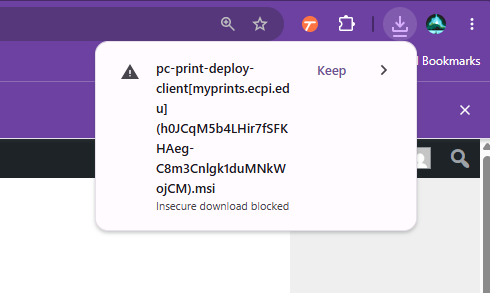
Download the client installer via bit.ly/winprintecpi. Note: A new webpage will not open; the link automatically triggers a download. Check your browser’s Downloads menu to find the file.
Step 2)
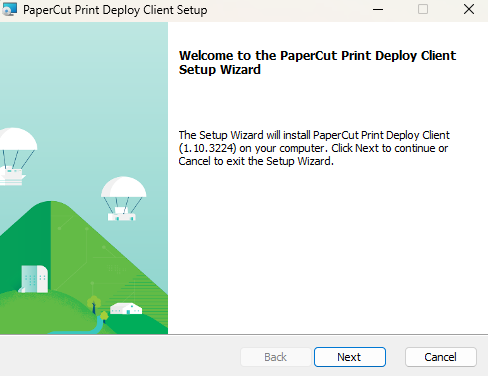
Open the file and follow the step-by-step installation wizard.
Step 3)
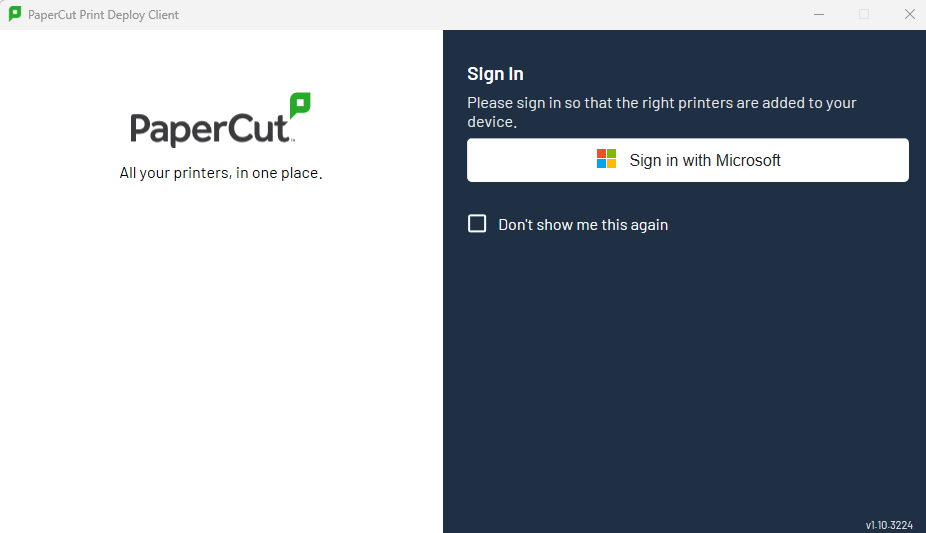
Sign in using your Canvas username and password (complete multifactor authentication if prompted).
How to Print
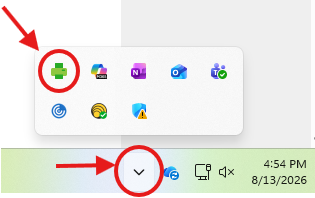
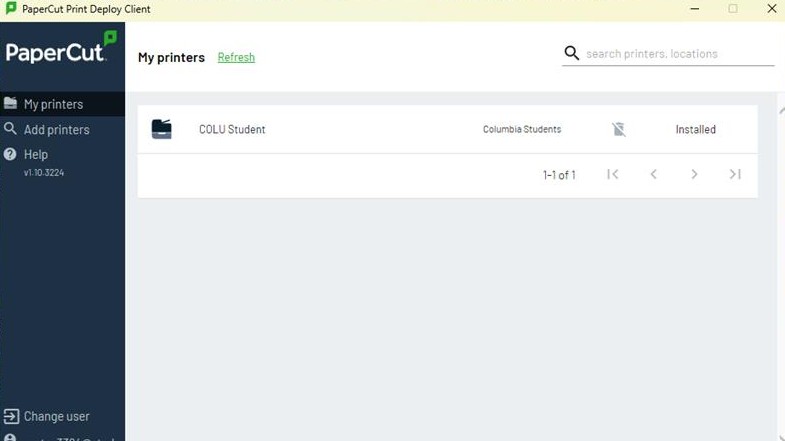
Verify You’re Logged In: Click the caret/arrow (^) near the bottom right corner of your Windows taskbar and click the green printer icon. Ensure you are signed in.
Send Your Job: Select the printer name displayed on your PaperCut screen when sending your document to print.
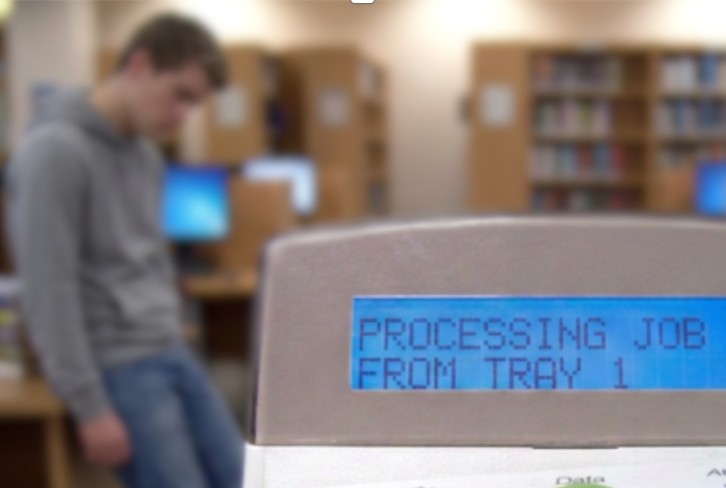
- Be Patient: Because the wireless antenna is located across the building from the printer, jobs do not print instantaneously. It may take 10 seconds to 2 minutes for your document to print.
- Do not hit “Print” repeatedly—doing so will queue duplicate jobs and waste your monthly print allowance!
Troubleshooting Checklist
If your document isn’t printing, try these steps in order:
- Check your login: Confirm you are active and signed in on the PaperCut client.
- Check your quota: Log in to myprints.ecpi.edu to ensure you haven’t reached your 100-page limit.
- Restart the app: Log out of PaperCut, then log back in.
- Update & Reboot: Check your Windows settings for any pending computer updates.
- Get IT Support: Still having trouble? Submit a ticket to the IT Help Desk at rtcolu@ecpi.edu.
